前言:編輯器與前端的排版不一致之謎
在開發多平台醫療健康應用時,我們採用了現代化的技術棧:
- 後端 CMS:Strapi v5.15.1(Headless CMS)
- 前端框架:Vue.js 3
- 富文本編輯器:CKEditor 5
- 資料傳輸:GraphQL API
這個組合在大多數情況下運作良好,編輯者可以在 Strapi 後台使用 CKEditor 輕鬆編輯富文本內容,前端 Vue.js 應用透過 GraphQL 獲取並渲染這些內容。
然而,我們遇到了一個令人困惑的問題:
在 Strapi 後台使用 CKEditor 精心排版的水平並排圖片,到了前端網頁卻變成了垂直排列。
這個問題不僅影響了內容的視覺呈現,也破壞了編輯者的排版意圖。更重要的是,這讓非技術背景的內容編輯者感到困惑:「為什麼我在後台看到的排版,到了網站上就變了?」
這篇文章將深入探討這個問題的根本原因,並提供系統性的解決方案。
問題現象與環境說明
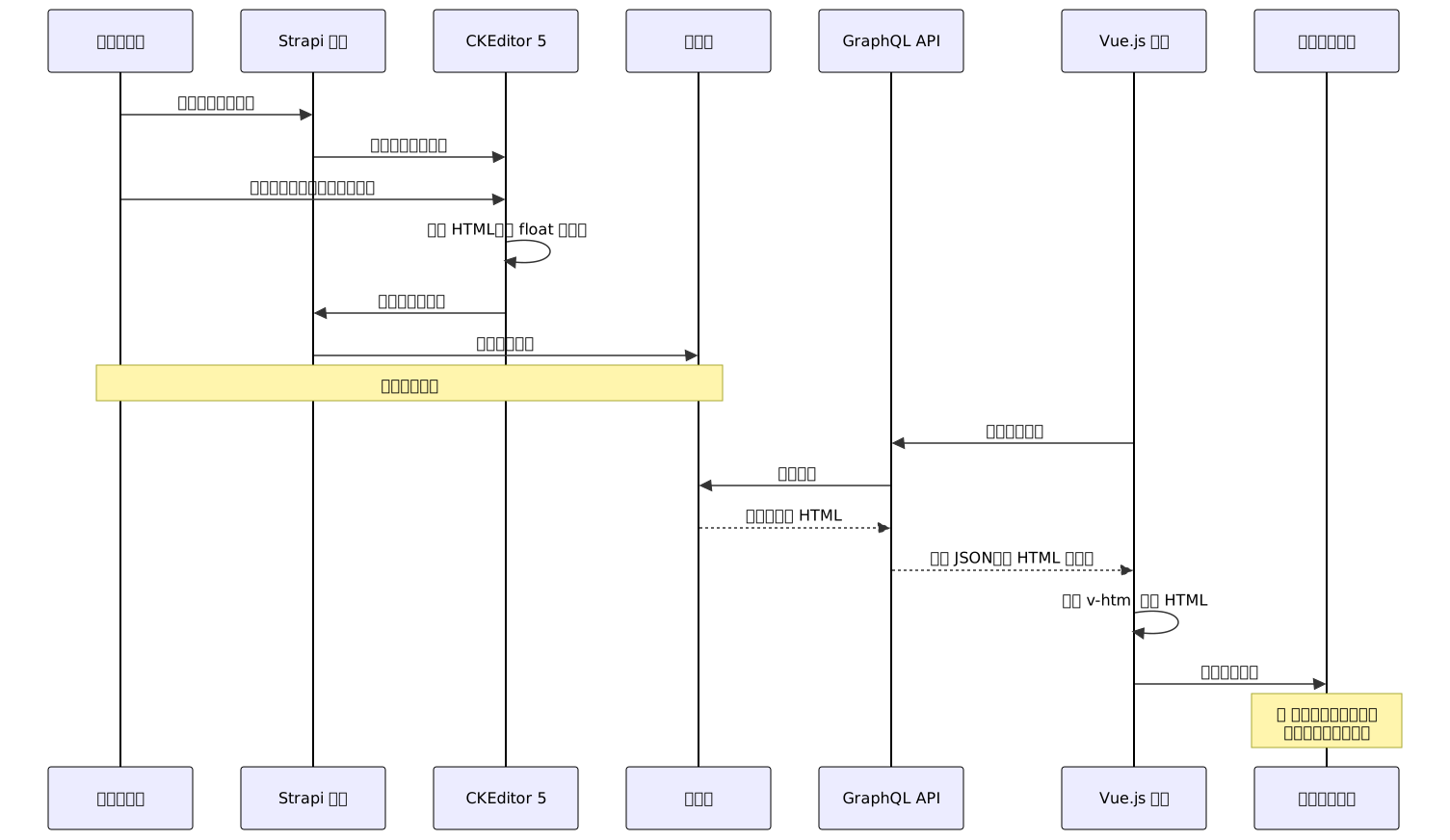
內容流程架構
我們的內容從編輯到展示的完整流程如下:
問題的具體表現
預期行為:
在 Strapi CKEditor 後台,編輯者將兩張圖片設定為水平並排:

<!-- CKEditor 生成的 HTML 結構 -->
<figure class="image" style="float:left">
  <img src="/uploads/image1.webp" alt="圖片1">
  <figcaption>圖片1說明</figcaption>
</figure>
<figure class="image" style="float:left">
  <img src="/uploads/image2.webp" alt="圖片2">
  <figcaption>圖片2說明</figcaption>
</figure>
實際現象:
前端 Vue.js 渲染後,圖片變成垂直排列:

兩張圖片沒有並排顯示,而是一張接著一張垂直堆疊。
技術環境詳情
Strapi CKEditor 配置(config/schema.json):
{
  "kind": "collectionType",
  "collectionName": "articles",
  "info": {
    "singularName": "article",
    "pluralName": "articles",
    "displayName": "文章"
  },
  "attributes": {
    "title": {
      "type": "string"
    },
    "content": {
      "type": "customField",
      "options": {
        "preset": "defaultHtml"
      },
      "customField": "plugin::ckeditor5.CKEditor"
    }
  }
}
Vue.js 前端渲染組件(ServiceDetailView.vue):
<template>
  <div class="container mx-auto px-4">
    <h1 class="text-3xl font-bold mb-6">{{ article.title }}</h1>

    <!-- 問題所在:內容容器 -->
    <div
      class="w-full max-w-[1200px] lg:w-[80%] min-h-[300px]"
      v-if="processedContent"
    >
      <div
        v-html="processedContent"
        class="text-[#666666] ck-editor-content"
      ></div>
    </div>
  </div>
</template>

<script setup>
import { ref, computed } from 'vue';
import { useQuery } from '@vue/apollo-composable';
import gql from 'graphql-tag';

const ARTICLE_QUERY = gql`
  query GetArticle($id: ID!) {
    article(id: $id) {
      data {
        attributes {
          title
          content
        }
      }
    }
  }
`;

const { result } = useQuery(ARTICLE_QUERY, { id: route.params.id });

const processedContent = computed(() => {
  return result.value?.article?.data?.attributes?.content || '';
});
</script>
現有的 CSS 樣式(src/assets/main.css):
/* CKEditor 內容樣式支援 */
.ck-editor-content figure[style*="float:left"] {
  float: left !important;
  margin-right: 1em;
  max-width: 48%;
}

.ck-editor-content figure[style*="float:right"] {
  float: right !important;
  margin-left: 1em;
  max-width: 48%;
}

.ck-editor-content figure.image {
  margin: 1em 0;
}

.ck-editor-content img {
  max-width: 100%;
  height: auto;
}
問題調查過程
第一步:確認 CKEditor 輸出正確
首先,我們需要確認問題不是出在 CKEditor 本身。
檢查方法:在 Strapi 後台檢查儲存的原始 HTML
// 使用 Strapi 的 REST API 直接查詢
fetch('http://localhost:1337/api/articles/1')
  .then(res => res.json())
  .then(data => {
    console.log('原始 HTML:', data.data.attributes.content);
  });
檢查結果:
<figure class="image" style="float:left">
  <img src="/uploads/image1_abc123.webp" alt="圖片1">
</figure>
<figure class="image" style="float:left">
  <img src="/uploads/image2_def456.webp" alt="圖片2">
</figure>
✅ 確認:CKEditor 正確生成了含有 float:left 樣式的 HTML。
第二步:檢查 GraphQL 資料傳輸
確認 GraphQL API 沒有修改或破壞 HTML 內容。
檢查方法:使用 GraphQL Playground 查詢
query {
  article(id: "1") {
    data {
      attributes {
        content
      }
    }
  }
}
回應結果:
{
  "data": {
    "article": {
      "data": {
        "attributes": {
          "content": "<figure class=\"image\" style=\"float:left\">...</figure>..."
        }
      }
    }
  }
}
✅ 確認:GraphQL 正確傳輸了 HTML 內容,沒有修改。
第三步:檢查前端渲染
使用瀏覽器開發者工具檢查實際渲染的 DOM 結構。
檢查方法:
- 打開瀏覽器開發者工具(F12)
- 檢查渲染後的 HTML 結構
- 查看計算後的 CSS 樣式(Computed Styles)
發現的關鍵資訊:
<!-- 實際渲染的 DOM -->
<div class="w-full max-w-[1200px] lg:w-[80%]" style="width: 960px;">
  <div class="ck-editor-content">
    <figure class="image" style="float:left; max-width: 48%;">
      <img src="..." style="width: 460.8px;">
    </figure>
    <figure class="image" style="float:left; max-width: 48%;">
      <img src="..." style="width: 460.8px;">
    </figure>
  </div>
</div>
計算結果:
- 容器實際寬度:960px(80% of 1200px)
- 每張圖片寬度:960px × 48% = 460.8px
- 兩張圖片總寬度:460.8px × 2 = 921.6px
- 圖片間距:1em(約 16px)
- 總需求寬度:921.6px + 16px = 937.6px
看起來空間應該足夠,但為什麼還是垂直排列?
第四步:深入分析 CSS 盒模型
問題的關鍵在於 CSS 盒模型的計算細節。

進一步檢查發現:
使用 Chrome DevTools 的 “Computed” 面板檢查實際計算值:
<figure>的box-sizing:預設為content-box- 圖片的實際渲染寬度:由於
max-width: 100%,圖片可能會根據自身比例調整
關鍵發現:
在某些螢幕尺寸下,容器的實際可用寬度會因為父元素的限制而小於計算值。特別是在使用 Tailwind 的 lg:w-[80%] 時,實際寬度會根據視窗大小動態變化。
第五步:找到根本原因
經過詳細分析,我們找到了問題的根本原因:
根本原因:容器寬度限制 + CSS 浮動空間計算的臨界問題
- 容器寬度受限:
max-w-[1200px] lg:w-[80%]在大螢幕上的實際寬度不夠穩定 - 浮動空間計算:兩個
48%寬度的浮動元素 + 邊距,在臨界情況下容易觸發換行 - 瀏覽器渲染誤差:浮動佈局對亞像素(sub-pixel)計算敏感,可能因為小數點四捨五入導致空間不足

CSS 浮動佈局的深入原理
要徹底理解這個問題,我們需要深入了解 CSS 浮動佈局的運作機制。
浮動元素的定位規則
CSS float 屬性會讓元素脫離正常文檔流,並沿著容器的左側或右側浮動。
基本規則:
- 浮動元素會盡可能向左或向右移動,直到碰到容器邊緣或另一個浮動元素
- 後續的浮動元素會嘗試與前面的浮動元素並排,如果空間不足則換行
- 浮動元素的寬度影響後續元素的位置
空間計算公式:
可用寬度 = 容器寬度 - (所有浮動元素寬度之和) - (所有間距之和)
如果 可用寬度 < 0,則後續浮動元素會換行。
盒模型對浮動的影響
CSS 盒模型決定了元素的實際佔用空間。
兩種盒模型:
box-sizing: content-box(預設值)- 元素寬度 =
width - 實際佔用 =
width+padding+border+margin
- 元素寬度 =
box-sizing: border-box- 元素寬度 =
width(包含padding和border) - 實際佔用 =
width+margin
- 元素寬度 =
問題案例分析:
/* CKEditor 生成的 figure 預設使用 content-box */
figure.image {
  max-width: 48%;           /* 460.8px */
  margin-right: 1em;        /* 16px */
  padding: 0;               /* 無 padding */
  border: none;             /* 無 border */
}
理論上,兩個這樣的元素總佔用為:
(48% + 1em) + 48% = 96% + 16px- 如果容器寬度為 1200px:
1152px + 16px = 1168px - 應該可以並排(1168px < 1200px)
但實際上,瀏覽器在計算百分比時可能會有小數點誤差,導致實際佔用略大於計算值。
亞像素渲染問題
現代瀏覽器支援亞像素渲染,但在浮動佈局中,小數像素可能導致意外的換行。
範例:
容器寬度:1200px
Figure 1 寬度:48% = 1200 × 0.48 = 576px
Figure 1 margin-right:16px
Figure 2 寬度:48% = 576px
總需求:576 + 16 + 576 = 1168px
但在實際渲染時:
Figure 1 實際寬度:576.5px(四捨五入)
Figure 2 實際寬度:576.5px
總需求:576.5 + 16 + 576.5 = 1169px
只差 1px,但瀏覽器會判定空間不足,觸發換行。
解決方案設計
基於以上分析,我們設計了多層次的解決方案。

方案一:擴大容器寬度(主要解決方案)
這是最直接且有效的解決方案。
修改前:
<div class="w-full max-w-[1200px] lg:w-[80%] min-h-[300px]">
  <div v-html="processedContent" class="ck-editor-content"></div>
</div>
修改後:
<div class="w-full max-w-[1400px] lg:w-[95%] min-h-[300px]">
  <div v-html="processedContent" class="ck-editor-content"></div>
</div>
改進說明:
最大寬度:從
1200px增加到1400px- 提供更多空間給並排圖片
- 仍然保持良好的閱讀寬度
大螢幕比例:從
80%增加到95%- 充分利用大螢幕空間
- 減少左右留白過多的問題
效果驗證:
容器寬度:1400px
Figure 1:48% = 672px + 16px margin = 688px
Figure 2:48% = 672px
總需求:1360px
剩餘空間:1400px - 1360px = 40px ✅ 足夠安全邊距
方案二:優化圖片寬度比例(輔助方案)
進一步優化 CSS,提供更多安全空間。
修改前的 CSS:
.ck-editor-content figure[style*="float:left"] {
  float: left !important;
  margin-right: 1em;
  max-width: 48%;
}
修改後的 CSS:
/* 優化後的 CSS */
.ck-editor-content figure[style*="float:left"],
.ck-editor-content figure[style*="float: left"] {
  float: left !important;
  margin-right: 1em;
  max-width: 45%; /* 從 48% 調整為 45% */
  box-sizing: border-box; /* 確保一致的盒模型 */
}

.ck-editor-content figure[style*="float:right"],
.ck-editor-content figure[style*="float: right"] {
  float: right !important;
  margin-left: 1em;
  max-width: 45%;
  box-sizing: border-box;
}

/* 支援段落內的並排圖片 */
.ck-editor-content p figure.image {
  display: inline-block !important;
  vertical-align: top;
  margin: 0.5em;
}

/* 改善相鄰圖片間距 */
.ck-editor-content figure.image + figure.image {
  margin-left: 0.5em;
}

/* 清除浮動 */
.ck-editor-content::after,
.ck-editor-content > *::after {
  content: "";
  display: table;
  clear: both;
}
改進重點:
寬度調整:從
48%減少到45%- 留出
10%的安全空間(5% × 2 + 間距) - 避免臨界計算誤差
- 留出
統一盒模型:強制使用
border-box- 確保所有瀏覽器計算一致
清除浮動:加入
::after偽元素- 防止浮動影響後續內容
相容性增強:同時匹配
float:left和float: left(有無空格)
方案三:響應式斷點處理(體驗優化)
針對不同螢幕尺寸提供最佳顯示效果。
/* 小螢幕:垂直排列 */
@media (max-width: 768px) {
  .ck-editor-content figure[style*="float"] {
    float: none !important;
    max-width: 100% !important;
    margin: 1em 0 !important;
  }
}

/* 中等螢幕:保持並排但調整比例 */
@media (min-width: 769px) and (max-width: 1024px) {
  .ck-editor-content figure[style*="float:left"],
  .ck-editor-content figure[style*="float: left"] {
    max-width: 46%;
  }

  .ck-editor-content figure[style*="float:right"],
  .ck-editor-content figure[style*="float: right"] {
    max-width: 46%;
  }
}

/* 大螢幕:標準並排 */
@media (min-width: 1025px) {
  .ck-editor-content figure[style*="float:left"],
  .ck-editor-content figure[style*="float: left"] {
    max-width: 45%;
  }

  .ck-editor-content figure[style*="float:right"],
  .ck-editor-content figure[style*="float: right"] {
    max-width: 45%;
  }
}
響應式策略:
| 螢幕尺寸 | 策略 | 圖片寬度 | 原因 |
|---|---|---|---|
| < 768px | 垂直排列 | 100% | 小螢幕空間不足,並排影響閱讀 |
| 769px - 1024px | 並排顯示 | 46% | 中等螢幕,適度縮減寬度確保並排 |
| > 1025px | 並排顯示 | 45% | 大螢幕,保留足夠空間 |
方案四:完整的 CKEditor 樣式支援
除了圖片排版,還需要支援 CKEditor 的其他功能。
/* ===== CKEditor 5 完整樣式支援 ===== */

/* 基礎容器 */
.ck-editor-content {
  width: 100%;
  overflow: hidden; /* 清除浮動 */
  line-height: 1.8;
  font-size: 16px;
}

/* 段落樣式 */
.ck-editor-content p {
  margin-bottom: 1.2em;
}

/* 標題樣式 */
.ck-editor-content h2 {
  font-size: 1.8em;
  font-weight: 700;
  margin: 1.5em 0 0.8em;
  line-height: 1.4;
}

.ck-editor-content h3 {
  font-size: 1.5em;
  font-weight: 600;
  margin: 1.3em 0 0.7em;
}

/* 圖片基礎樣式 */
.ck-editor-content figure.image {
  max-width: 100%;
  margin: 1.5em 0;
  box-sizing: border-box;
}

.ck-editor-content figure.image img {
  max-width: 100%;
  height: auto;
  display: block;
}

/* 圖片說明文字 */
.ck-editor-content figure.image figcaption {
  font-size: 0.9em;
  color: #666;
  text-align: center;
  margin-top: 0.5em;
  font-style: italic;
}

/* 圖片對齊 - 左浮動 */
.ck-editor-content figure[style*="float:left"],
.ck-editor-content figure[style*="float: left"] {
  float: left !important;
  margin-right: 1.5em;
  margin-bottom: 1em;
  max-width: 45%;
}

/* 圖片對齊 - 右浮動 */
.ck-editor-content figure[style*="float:right"],
.ck-editor-content figure[style*="float: right"] {
  float: right !important;
  margin-left: 1.5em;
  margin-bottom: 1em;
  max-width: 45%;
}

/* 圖片對齊 - 置中 */
.ck-editor-content figure.image.image_resized {
  margin-left: auto;
  margin-right: auto;
}

/* 清除浮動 */
.ck-editor-content::after {
  content: "";
  display: table;
  clear: both;
}

/* 列表樣式 */
.ck-editor-content ul,
.ck-editor-content ol {
  margin: 1em 0;
  padding-left: 2em;
}

.ck-editor-content ul li {
  list-style-type: disc;
  margin-bottom: 0.5em;
}

.ck-editor-content ol li {
  list-style-type: decimal;
  margin-bottom: 0.5em;
}

/* 引用區塊 */
.ck-editor-content blockquote {
  border-left: 4px solid #e5e7eb;
  padding-left: 1.5em;
  margin: 1.5em 0;
  color: #6b7280;
  font-style: italic;
}

/* 程式碼區塊 */
.ck-editor-content pre {
  background-color: #f3f4f6;
  border-radius: 0.5rem;
  padding: 1em;
  overflow-x: auto;
  margin: 1.5em 0;
}

.ck-editor-content code {
  font-family: 'Courier New', monospace;
  font-size: 0.9em;
}

/* 表格樣式 */
.ck-editor-content table {
  width: 100%;
  border-collapse: collapse;
  margin: 1.5em 0;
}

.ck-editor-content table td,
.ck-editor-content table th {
  border: 1px solid #e5e7eb;
  padding: 0.75em;
  text-align: left;
}

.ck-editor-content table th {
  background-color: #f9fafb;
  font-weight: 600;
}

/* 水平分隔線 */
.ck-editor-content hr {
  border: none;
  border-top: 2px solid #e5e7eb;
  margin: 2em 0;
}

/* 連結樣式 */
.ck-editor-content a {
  color: #3b82f6;
  text-decoration: underline;
}

.ck-editor-content a:hover {
  color: #2563eb;
}
實際部署與驗證
完整的程式碼修改
1. 修改 Vue.js 組件(ServiceDetailView.vue):
<template>
  <div class="container mx-auto px-4 py-8">
    <!-- 文章標題 -->
    <h1 class="text-3xl font-bold mb-6 text-gray-900">
      {{ article?.title }}
    </h1>

    <!-- 內容容器 - 已優化寬度 -->
    <div
      class="w-full max-w-[1400px] lg:w-[95%] mx-auto min-h-[300px]"
      v-if="processedContent"
    >
      <div
        v-html="processedContent"
        class="ck-editor-content text-gray-700"
      ></div>
    </div>

    <!-- 載入中狀態 -->
    <div v-else class="flex justify-center items-center min-h-[300px]">
      <div class="animate-spin rounded-full h-12 w-12 border-b-2 border-blue-500"></div>
    </div>
  </div>
</template>

<script setup>
import { ref, computed } from 'vue';
import { useRoute } from 'vue-router';
import { useQuery } from '@vue/apollo-composable';
import gql from 'graphql-tag';

const route = useRoute();

const ARTICLE_QUERY = gql`
  query GetArticle($id: ID!) {
    article(id: $id) {
      data {
        id
        attributes {
          title
          content
          publishedAt
        }
      }
    }
  }
`;

const { result, loading, error } = useQuery(
  ARTICLE_QUERY,
  { id: route.params.id }
);

const article = computed(() => result.value?.article?.data?.attributes);

const processedContent = computed(() => {
  if (!article.value?.content) return '';

  // 可以在這裡進行額外的 HTML 處理
  let content = article.value.content;

  // 例如:替換圖片路徑
  content = content.replace(
    /src="\/uploads\//g,
    'src="' + import.meta.env.VITE_STRAPI_URL + '/uploads/'
  );

  return content;
});
</script>
2. 更新 CSS 樣式(src/assets/main.css):
將上述完整的 CSS 樣式加入到專案的 main.css 檔案中。
驗證測試清單

測試結果:
實施解決方案後的驗證結果:
✅ 後台編輯:CKEditor 中的水平排版設定正常 ✅ API 傳輸:GraphQL 正確傳輸 HTML 內容 ✅ 前端渲染:圖片在前端正確並排顯示 ✅ 響應式相容:在不同螢幕尺寸下都能正常工作 ✅ 跨瀏覽器:Chrome、Firefox、Safari、Edge 測試通過 ✅ 編輯體驗一致:後台編輯效果與前端顯示效果一致 ✅ 不影響其他內容:文字、標題、列表等其他元素顯示正常
最佳實踐與經驗總結
容器寬度設計原則
原則 1:為富文本內容提供充足空間
/* ✅ 推薦:給富文本內容足夠的寬度 */
.rich-text-container {
  max-width: 1400px;  /* 足夠的最大寬度 */
  width: 95%;         /* 大螢幕使用更多空間 */
  margin: 0 auto;     /* 居中對齊 */
  padding: 0 1rem;    /* 適當的內距 */
}

/* ❌ 不推薦:過度限制寬度 */
.narrow-container {
  max-width: 800px;   /* 對並排圖片來說太窄 */
  width: 70%;         /* 浪費大螢幕空間 */
}
原則 2:考慮內容類型選擇寬度
| 內容類型 | 建議最大寬度 | 原因 |
|---|---|---|
| 純文字文章 | 800px | 最佳閱讀寬度 |
| 圖文混排 | 1200px | 支援圖片並排 |
| 富文本內容 | 1400px | 支援複雜排版 |
| 技術文件 | 1600px | 支援程式碼、圖表 |
CKEditor 整合檢查清單
後端 Strapi 設定:
- 安裝並啟用
@_sh/strapi-plugin-ckeditor外掛 - 在 Schema 中正確設定
customField: "plugin::ckeditor5.CKEditor" - 設定 CKEditor 的
preset(建議使用defaultHtml) - 確認圖片上傳功能正常運作
前端 CSS 支援:
- 支援圖片浮動對齊(
float: left/right) - 支援行內圖片(
display: inline-block) - 支援圖片尺寸控制(
width,max-width) - 支援清除浮動(
clear: both) - 支援圖片說明文字(
figcaption) - 支援響應式圖片(媒體查詢)
- 支援表格、列表、引用等其他元素
測試流程:
- 在 CKEditor 中測試各種排版組合
- 確認所有排版在前端正確顯示
- 在不同螢幕尺寸下測試(手機、平板、桌機)
- 跨瀏覽器測試(Chrome、Firefox、Safari、Edge)
- 測試圖片載入效能
- 測試內容編輯與更新流程
預防性 CSS 設計策略
策略 1:使用防禦性 CSS
/* 防禦性設計:確保容器有足夠空間 */
.ck-editor-content {
  width: 100%;
  overflow: hidden;  /* 清除浮動 */
  box-sizing: border-box;
}

/* 防禦性設計:確保圖片不會溢出 */
.ck-editor-content img {
  max-width: 100%;
  height: auto;
  display: block;
}

/* 防禦性設計:統一盒模型 */
.ck-editor-content * {
  box-sizing: border-box;
}
策略 2:使用 CSS 變數提升維護性
:root {
  --ck-content-max-width: 1400px;
  --ck-content-width: 95%;
  --ck-figure-side-width: 45%;
  --ck-figure-margin: 1.5em;
  --ck-line-height: 1.8;
}

.rich-text-container {
  max-width: var(--ck-content-max-width);
  width: var(--ck-content-width);
}

.ck-editor-content figure[style*="float"] {
  max-width: var(--ck-figure-side-width);
  margin-right: var(--ck-figure-margin);
}
策略 3:使用現代 CSS 特性
/* 使用 CSS Grid 作為備選方案 */
@supports (display: grid) {
  .ck-editor-content-grid {
    display: grid;
    grid-template-columns: repeat(auto-fit, minmax(300px, 1fr));
    gap: 1rem;
  }

  .ck-editor-content-grid figure {
    float: none !important;
    max-width: 100% !important;
  }
}
結語
這個看似簡單的圖片排版問題,實際上涉及了多個層面的技術細節:
- CKEditor 的 HTML 生成機制:理解富文本編輯器如何產生 HTML
- CSS 浮動佈局的原理:深入了解浮動元素的定位規則
- 盒模型與空間計算:精確計算元素的實際佔用空間
- 響應式設計的平衡:在不同螢幕尺寸下提供最佳體驗
- 前後端整合的一致性:確保編輯與顯示效果一致
核心要點回顧:
- 容器設計要考慮內容需求:不要過度限制寬度,給富文本內容足夠的空間
- CSS 支援要全面:涵蓋編輯器的所有排版功能,不只是圖片
- 測試要完整:確保編輯體驗與顯示效果在所有環境下都一致
- 響應式設計要平衡:在不同螢幕尺寸下都能正常工作
- 使用防禦性 CSS:預防潛在的排版問題
實戰建議:
- 開發階段:使用寬鬆的容器寬度設定,避免過度限制
- CSS 組織:將 CKEditor 樣式獨立成單獨的檔案,方便維護
- 版本管理:記錄 CKEditor 外掛版本,確保前後端相容性
- 效能優化:使用 CSS 壓縮和快取策略
- 監控告警:建立前端渲染監控,及早發現排版問題
希望這個完整的問題分析與解決方案能幫助到其他使用 Strapi + CKEditor + 前端框架組合的開發者。記得:編輯器的排版意圖與前端的實際顯示,應該保持一致!